How To Prevent Wrist Pain From Typing

We may earn a commission for purchases made using our links. Please see our disclosure to learn more.
A few hours at your keyboard shouldn’t leave your wrists aching, yet it’s something many office workers and students deal with regularly. You might notice a dull ache after a long workday or stiffness when you start typing the next morning. Wrist pain from typing can develop when repetitive movements, awkward hand positions, and long hours at a desk put unnecessary strain on your wrists. Understanding what causes that discomfort is the first step toward preventing it. From adjusting your keyboard to changing a few everyday habits, here’s how to make typing more comfortable.
Why Do Your Wrists Hurt When Typing?
Your wrists contain small joints, tendons, and nerves that help control your hands and fingers. Typing involves repeated movements, and certain working habits can put additional stress on these structures.
Common contributing factors include:
- Poor wrist alignment: Bending your wrists upward or sideways while typing.
- Incorrect keyboard height: Working with your hands too high or low.
- Long typing sessions: Repeating movements without enough breaks.
- Contact pressure: Resting your wrists against hard desk edges.
- Excessive force: Pressing keys too hard or gripping your mouse tightly.
Not all wrist discomfort comes from typing, though. Tendon irritation, nerve compression, and other conditions can cause similar symptoms.
Research on wrist posture and carpal tunnel pressure suggests that wrist positioning can affect pressure within the carpal tunnel, highlighting the importance of comfortable alignment.
Common Typing Habits That Make Wrist Pain Worse
Even with a good workstation, certain habits can make your wrists uncomfortable.
Watch out for these common mistakes:
- Resting on hard desk edges: Creates unnecessary pressure on your wrists.
- Typing with raised shoulders: Adds tension to your arms and upper body.
- Using a laptop on your lap: Makes proper screen and keyboard positioning difficult.
- Ignoring discomfort: Continuing painful movements may aggravate symptoms.
- Skipping breaks: Keeps your hands performing repetitive movements for too long.
Notice when your discomfort begins. If it happens during a particular task, that activity or part of your setup may need attention.

How To Prevent Wrist Pain From Typing
You don’t need a complicated workstation or expensive equipment to improve your typing comfort. Start with these simple adjustments.
1. Keep Your Wrists in a Neutral Position
Look at your hands while typing. If your wrists bend upward or sideways, your keyboard position may need adjusting.
Try keeping your hands roughly in line with your forearms. Move your hands when reaching for distant keys instead of twisting your wrists.
You don’t have to keep them perfectly still. Natural movement is fine, as long as you’re not holding uncomfortable positions for extended periods.
2. Adjust Your Keyboard Height and Angle
Your keyboard should sit at a height that allows your shoulders to relax and your elbows to stay comfortably near your sides.
When your keyboard sits too high, your wrists may tilt upward as you type. If it’s too far away, you’ll constantly reach forward.
Keep the keyboard close and avoid raising its rear feet unnecessarily, since an upward tilt can increase wrist bending.
For laptop users, an external keyboard can make it easier to position both the screen and hands comfortably.
3. Improve Your Sitting Posture
Your sitting position affects how your arms and wrists rest while typing.
For example, sitting too low may force you to lift your shoulders to reach the keyboard. That extra effort can become uncomfortable after several hours.
A few adjustments can help:
- Keep your back comfortably supported.
- Relax your shoulders.
- Position your elbows near your body.
- Keep both feet comfortably supported, either on the ground or with a footrest.
- Position your screen at a height that lets you look ahead without straining your neck.
Don’t worry about maintaining one perfect posture all day. Changing positions regularly matters, too.
4. Position Your Mouse Correctly
Your mouse can contribute to wrist discomfort, particularly if you constantly reach sideways to use it.
Keep it close to your keyboard and at roughly the same height. Try moving it with your forearm rather than relying entirely on your wrist.
If your mouse feels awkward to hold, consider trying a different size or shape that fits your hand better.
5. Take Regular Typing Breaks
It’s easy to spend hours typing when you’re focused on a deadline. Unfortunately, even a comfortable position can become tiring when you maintain it too long.
Give yourself a few minutes to move around after every 20–30 minutes of typing. Stand up, stretch gently, or switch to another task.
You don’t need lengthy breaks. Giving your hands opportunities to rest and move differently can help reduce fatigue.
6. Type With a Lighter Touch
Some people press keyboard keys harder than necessary, especially when working quickly.
Most modern keyboards respond to relatively light pressure, so there’s little benefit in hitting the keys forcefully.
Keep your fingers relaxed and use only enough pressure to register each keystroke.
Keyboard shortcuts and voice dictation can also help reduce repetitive typing when you’re working on lengthy documents. For more practical guidance, explore these tips for reducing wrist pain through better ergonomics.
Simple Wrist Exercises for Desk Workers
Gentle movements can help relieve stiffness after long typing sessions. These three exercises are easy to do at your desk.
Wrist Circles
Hold your hands comfortably in front of you and slowly rotate your wrists.
Slowly rotate your wrists five times each way, keeping the movement gentle and controlled.
Finger Spreads
Open your hands and gently spread your fingers apart.
Hold for a few seconds, relax, and repeat five to ten times.
Gentle Wrist Stretch
Hold one arm out with your palm facing the floor, then gently flex your wrist until you notice a slight stretch.
Maintain the stretch for about 10–15 seconds before repeating it with your other hand.
These exercises should feel comfortable. Stop if you experience pain, tingling, or numbness.
Can Ergonomic Accessories Help?
Ergonomic accessories can improve comfort when they address a specific workstation problem.
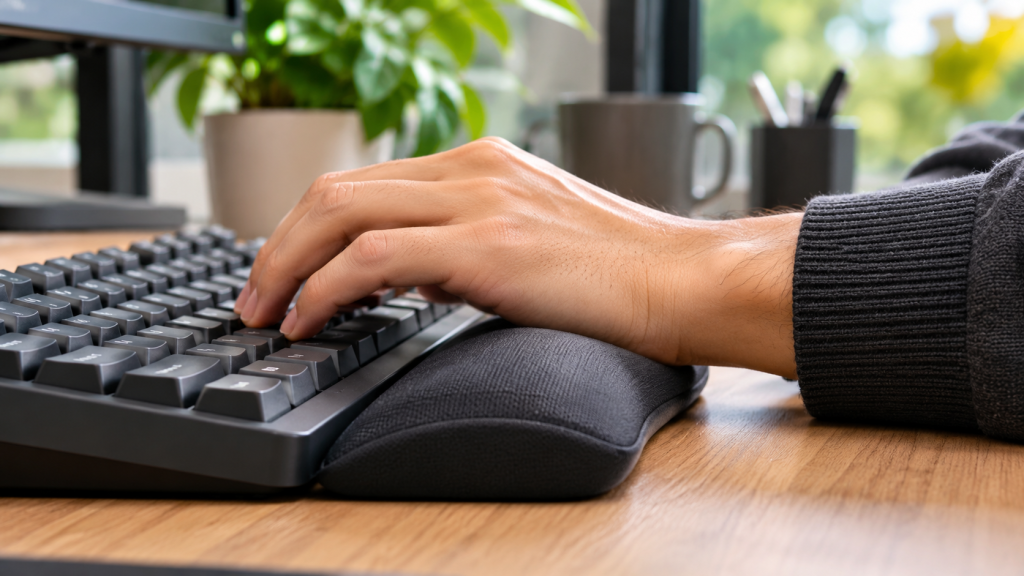
For example, a split keyboard may reduce sideways wrist bending, while an adjustable keyboard tray can help you find a more comfortable typing height.
However, these products aren’t guaranteed treatments for wrist pain.
A Cochrane review of ergonomic interventions found insufficient evidence to determine whether ergonomic equipment effectively treats carpal tunnel syndrome.
Before buying anything, consider what actually feels uncomfortable about your current setup. Sometimes, adjusting your existing equipment is enough.
Recommended Products
These five accessories may help make your workstation more comfortable.
- Logitech ERGO K860 Wireless Keyboard — Curved, split-key layout with cushioned palm support. Best for extended typing sessions.
- Logitech Lift Vertical Mouse — Encourages a handshake-style grip. Best for users seeking a more comfortable mouse position.
- Logitech Wave Keys Keyboard — Compact wave-shaped design with palm support. Best for everyday office work.
- 3M Gel Wrist Rest — Cushioned palm support for typing breaks. Best for reducing contact with hard desk surfaces.
- Kensington SoleMate Adjustable Footrest — Adjustable foot support for better seated positioning. Best for desks where your feet don’t comfortably reach the floor.
Conclusion
Your wrists shouldn’t have to suffer through another long workday. Paying attention to how you position your hands, adjusting your desk setup, and taking regular breaks can help reduce unnecessary strain. Small habits matter more than you might think, especially when you spend hours typing every day. If discomfort keeps returning, don’t ignore it. A few thoughtful changes now may help you stay comfortable at your keyboard in the long run.
FAQs
1. Can typing all day cause wrist pain?
Yes. Prolonged typing can contribute to discomfort, especially when combined with awkward wrist positions and limited breaks.
2. Is it better to keep my wrists raised while typing?
Avoid pressing your wrists against hard surfaces while actively typing. A cushioned palm rest can provide support during pauses.
3. Are ergonomic keyboards better for wrist pain?
They may improve comfort by supporting more natural hand positions, but they aren’t guaranteed to prevent or treat wrist pain.
4. When should I step away from my keyboard for a break?
Aim to step away from your keyboard briefly every 20–30 minutes to give your hands a rest. You can also alternate between typing and other tasks.
5. Will typing-related wrist pain improve without treatment?
Mild discomfort may improve with rest and better ergonomics. If wrist pain doesn’t improve or you notice numbness or weakness, consult a healthcare professional.