
Ergonomic Monitor Setup: The Correct Height, Distance & Angles
We may earn a commission for purchases made using our links. Please see our disclosure to learn more.
If your neck feels tight after a few hours at your desk, your monitor position may be part of the problem. A proper ergonomic monitor setup helps keep your screen at the right height, distance, and angle so you can work without leaning forward, tilting your head, or straining your eyes. In this guide, you’ll learn how to position your monitor correctly, adjust single or dual screens, reduce glare, and create a more comfortable workspace for daily use.
Why Monitor Position Matters
Your monitor controls where your head goes.
If your screen is too low, you look down all day. If it is too high, you lift your chin. If it sits off to one side, your neck twists every time you work. These small habits can lead to neck tension, shoulder tightness, eye strain, and upper back discomfort.
A good setup helps your body stay neutral. Your neck and spine stay in a more natural, relaxed position. Your eyes can read comfortably. Your back does not need to round forward just to see the screen.
That is the real goal of an ergonomic monitor setup: less strain and more comfort during daily work.
The Best Ergonomic Monitor Setup at a Glance
For most people, the ideal setup follows a few simple rules:
- Position your monitor so the upper edge of the screen sits around eye height or just a little lower.
- Set the screen roughly one arm’s length from where you sit.
- Position the screen directly in front of your body.
- Tilt the monitor slightly for comfortable viewing.
- Adjust your screen position to limit reflections from nearby windows and ceiling lights.
- Keep your main screen aligned with your keyboard and chair.
These rules are a starting point. You may need to adjust them based on your height, screen size, vision, glasses, and desk layout.
Correct Monitor Height
Monitor height is one of the first things to fix because it affects your neck right away.
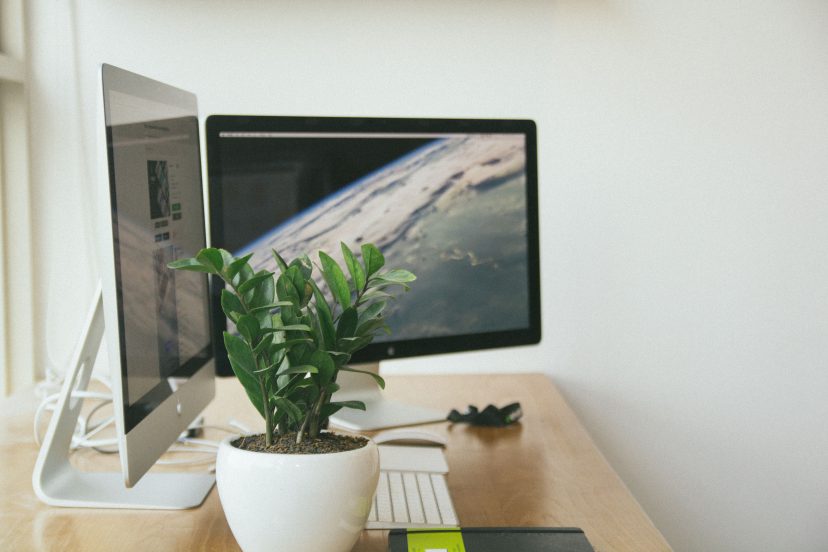
Adjust the monitor height so your eyes naturally meet the upper part of the display. When you sit upright with relaxed shoulders, your eyes should land near the top third of the monitor.
This lets you look slightly downward as you read. Your neck should stay relaxed, not bent forward or tilted back.
Research supports this idea. In a study on monitor height and user comfort, researchers tested different screen heights during seated office work. Users reported better overall comfort with the higher monitor setting compared with lower positions. Neck and lower-back comfort also improved compared with the lowest setup.
That does not mean your monitor should sit sky-high. It means you should avoid placing it so low that you constantly bend your neck.
Where Your Eyes Should Land
Sit back in your chair. Keep your feet firmly supported and let your shoulders rest naturally. Then look straight ahead.
Your eyes should land near the top part of the screen. From there, your gaze should move slightly downward as you read.
You shouldn’t have to raise your chin to see the top of your monitor. You also shouldn’t have to bow your head to see the middle of the screen.
For most users, the center of the screen should sit a little below eye level. If you use a large monitor, move it slightly farther back so you can see the full screen without moving your head too much.
If you wear bifocals or progressive lenses, you may need the monitor slightly lower than usual. This can help you see clearly without tilting your head backward.
What to Do If Your Monitor Is Too Low or Too High
If your monitor is too low, raise it with a monitor stand, riser, or adjustable arm. A stack of books can work for a quick fix, but a stable riser is safer and cleaner.
If your monitor is too high, remove anything underneath it. Many people accidentally raise their screens too much by placing them on shelves, boxes, or desktop towers.
The goal is simple: keep your neck neutral.
Your monitor should support your posture, not force your body to chase the screen.
Correct Monitor Distance
Distance affects both posture and eye comfort.
A simple way to check the distance is to sit back and make sure the screen is about an arm’s reach away. For many people, that means around 20 to 40 inches from the eyes.
To test it, sit back in your chair and reach one arm forward. Your fingertips should come close to the screen. You should be able to see the text clearly without moving your head or leaning toward the screen.
When the display sits too near your face, your eyes may tire faster from constant close-up focusing. You may also lean back awkwardly or feel boxed in at your desk.
If the screen is too far away, you may lean forward, round your shoulders, or squint at small text. That defeats the purpose of an ergonomic monitor setup.
Instead of pulling the monitor closer, increase the font size, zoom level, or display scaling.
How Screen Size Changes Viewing Distance
Larger monitors usually need more distance.
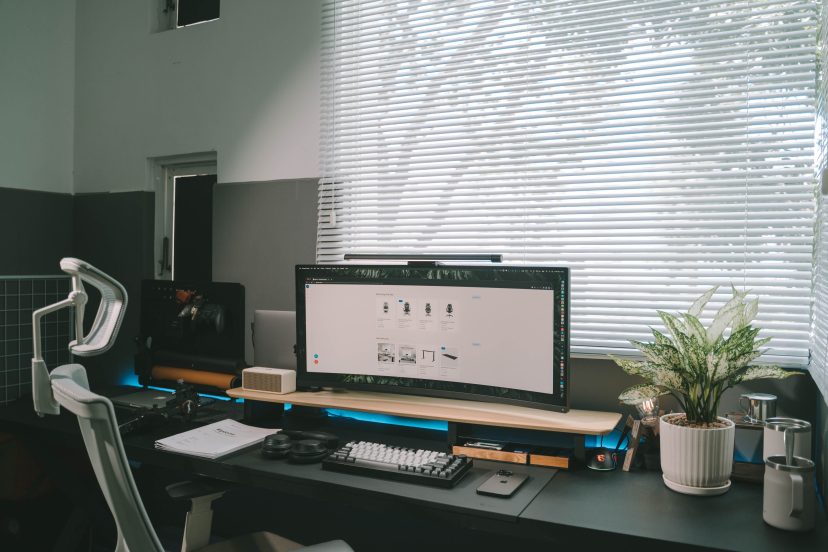
This is especially true for ultrawide screens or large 32-inch displays. When a large screen is positioned too close, you may end up scanning across it too much, which can strain both your eyes and neck.
Place a wide monitor far enough back so you can see your main work area without turning your head all day. Your eyes can move, but your neck should not do all the work.
For smaller monitors, you can sit a little closer. However, avoid crowding the screen. If you keep leaning forward, adjust the text size before changing your posture.
Correct Monitor Angle and Tilt
Your monitor should match your natural line of sight.
Keep the screen directly in front of you. Tilt it slightly so the display faces your eyes comfortably. A small backward tilt can help, especially if the monitor sits just below eye level.
Avoid extreme angles. Too much backward tilt can catch overhead light and cause glare. Too much forward tilt can make the screen harder to read.
A video display terminal height study compared a screen positioned 15 degrees below eye level with one positioned 40 degrees below eye level. The lower 40-degree position caused greater head tilt and higher muscle activity in several neck, shoulder, and back muscles. Most participants also preferred the 15-degree position.
That finding supports a practical rule: keep your screen close to eye level, with only a slight downward gaze.
Why a Slight Downward Gaze Helps
A slight downward gaze keeps your neck more relaxed than looking upward.
Looking up at a monitor may seem harmless, but it can make your neck muscles work harder for long periods. For most setups, the upper edge of the monitor should not rise above your eye line.
Your gaze should move gently downward across the screen. Your chin should stay relaxed, not lifted.
If you catch yourself tilting your head back, your monitor is probably too high.
Avoid Glare and Neck Tilting
Glare can ruin an otherwise good setup.
When light reflects off your screen, you may squint, lean, or tilt your head without noticing. Over time, that can cause discomfort.
Place your monitor perpendicular to windows when possible. Avoid putting it directly in front of a bright window or directly behind one. Also, adjust your screen brightness so it matches the room.
For more help, read this guide on how poor lighting affects comfort and productivity.
Good lighting helps you keep better posture because you do not need to fight reflections just to see your screen.
Single Monitor Setup
A single monitor should sit directly in front of you.
Line it up with your keyboard, chair, and body. Your nose, keyboard, and screen should all face the same direction.
This helps you avoid twisting your neck or upper body while you work.
If you use printed notes, place them on a document holder near the screen. Avoid keeping papers flat on the desk if they make you look down over and over.
Small repeated movements can add up during a long workday.
Dual Monitor Setup
Dual monitors are useful, but they need the right layout.
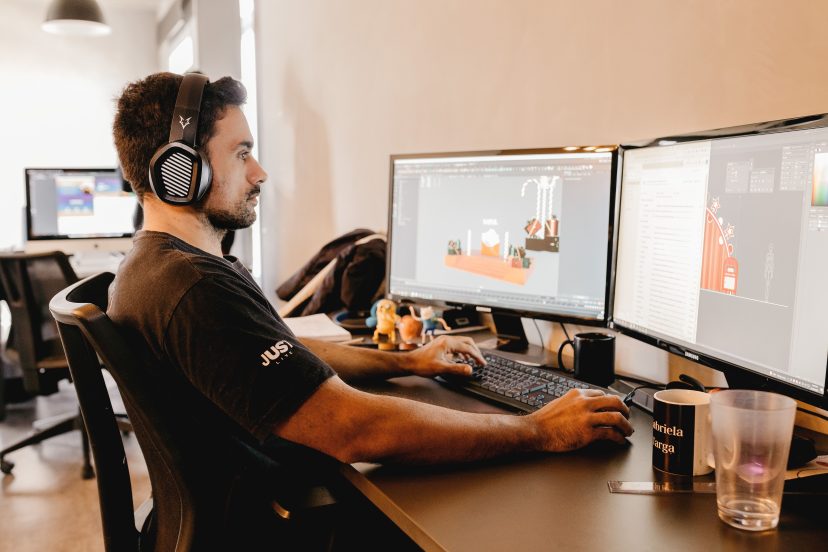
If you use both screens equally, place them in front of you with the inner edges close together. Angle them slightly inward, like a gentle curve around your body.
Keep both screens at the same height and distance when possible. This reduces neck movement and makes switching between screens easier.
When one screen does most of the work, keep that monitor centered in front of your body. Put the second monitor to the side and angle it slightly inward.
Avoid placing two monitors in one long, flat line. That setup often makes you twist your neck too much, especially with wide screens.
Laptop Monitor Setup
A laptop is convenient, but it is not ideal for long desk work by itself.
The screen and keyboard are connected, so one part usually ends up in the wrong place. If the keyboard sits at a comfortable height, the screen is too low. If the screen sits at eye level, the keyboard is too high.
The better fix is simple: raise the laptop on a stand and use an external keyboard and mouse.
This lets your screen sit at a better height while your arms stay relaxed.
Recommended Products for a Better Setup
You do not need every ergonomic accessory on the internet. Choose the accessory that fixes your main comfort issue first.
1. Amazon Basics Single Monitor Stand
This is a simple option if your screen sits too low. It raises the monitor and gives you extra space underneath for small desk items.
2. HUANUO Single Monitor Arm
A monitor arm gives you more control over height, distance, and tilt. It is useful if you adjust your workspace often.
3. VIVO Adjustable Monitor Desk Mount Stand
This is another practical choice for improving monitor position. It works well for users who want a cleaner desk and better screen control.
4. HUANUO Dual Monitor Arm
This is helpful for dual-screen setups. It lets you position both monitors at a similar height and angle.
5. BenQ ScreenBar Monitor Light
A monitor light bar can improve desk lighting without shining directly into your eyes. It is useful if your room lighting feels uneven or harsh.
Conclusion
A good ergonomic monitor setup starts with three basics: height, distance, and angle. Keep the top of your screen at or slightly below eye level, place the monitor about an arm’s length away, and tilt it so you can read comfortably without glare. These small changes can reduce neck strain, improve eye comfort, and make long work sessions feel easier. Once your monitor is in the right place, the rest of your desk setup becomes much easier to fine-tune.
FAQs
1. What is the correct height for an ergonomic monitor setup?
The screen’s upper edge should sit close to your natural eye level, not too high or too low. Your eyes should naturally land near the top third of the monitor when you sit upright.
2. How far should my monitor be from my eyes?
A good starting point is about an arm’s length away, usually around 20 to 40 inches. You should be able to see the text comfortably while sitting back in your chair.
3. Should my monitor be tilted?
Yes, a slight tilt can help. The screen should face your eyes comfortably. Avoid extreme tilt because it can create glare or make the screen harder to read.
4. How should I set up two monitors?
If you switch between both monitors often, arrange them as a slight curve around your viewing area. If one is your main screen, center it in front of you and place the second screen to the side.
5. Is a laptop stand worth it?
Yes, especially for long work sessions. A laptop stand raises the screen, but you should also use an external keyboard and mouse to keep your arms comfortable.