9 Ergonomic Desk Organization Tips to Reduce Workspace Clutter
We may earn a commission for purchases made using our links. Please see our disclosure to learn more.
You can usually tell when a desk is working against you before the pain fully shows up. The keyboard sits a little too far away, the mouse gets trapped beside a pile of papers, cables hang under your feet, and your monitor slowly shifts into whatever space is left. Over time, that messy setup can affect how you sit, reach, type, and focus. That is where smart desk organization becomes more than a cleaning habit; it becomes part of an ergonomic workspace. In this guide, you will learn nine practical ways to reduce clutter, arrange your essentials more comfortably, and create a desk setup that supports your body during long work sessions.
Why Desk Organization Matters for Ergonomics
A messy desk often creates small posture problems. You may twist slightly to see your monitor, stretch your arm to reach the mouse, or type with your shoulders raised because clutter has taken over your main work area.
These habits may not feel serious at first, but they can add up over time. Poor desk layout can increase strain on your neck, shoulders, arms, and wrists.
The Mayo Clinic office ergonomics guide recommends placing your monitor directly in front of you, about an arm’s length away, with the top of the screen near eye level. OSHA’s computer workstation guidance also highlights the importance of proper monitor, keyboard, mouse, and workstation setup.
In simple terms, an organized desk helps your body stay in a better position. When everything has a clear place, you reach less, adjust less, and work with fewer distractions.
1. Keep Your Primary Work Zone Clear
Your primary work zone is the area directly in front of your body. This is where your keyboard, mouse, monitor, notebook, and other daily tools should sit.
Keep this space as clear as possible. Avoid letting papers, chargers, snacks, receipts, or random office supplies take over the area where your hands need to move.
A useful rule is simple: if you use it every hour, it can stay close. If you use it once a day or less, move it to a drawer, shelf, or side organizer.
When your main work area stays open, your arms move more naturally. You also avoid the common habit of reaching around clutter just to type, write, or use your mouse.
2. Place Your Monitor at the Right Height
Your monitor position affects your neck and upper back more than many people realize. If the screen sits too low, your head drops forward. If it sits too high, your chin lifts and your neck may tighten.
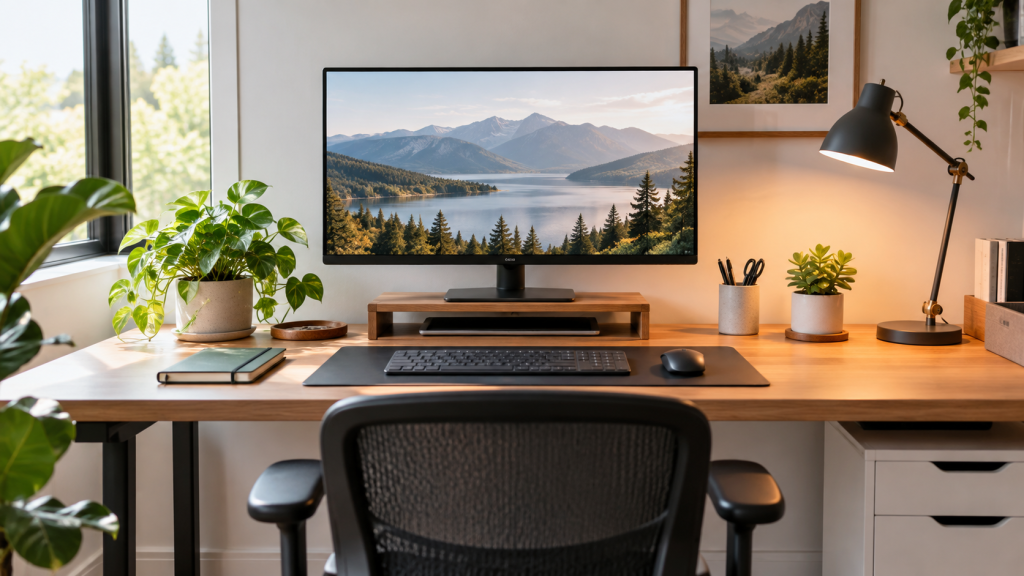
Place your monitor directly in front of you. The top of the screen should be around eye level, and the display should sit about an arm’s length away. You should be able to look at it without leaning forward.
If you work from a laptop, avoid using it flat on the desk for long hours. A laptop stand with an external keyboard and mouse usually creates a better setup.
For more detail, this guide on ergonomic monitor setup explains screen height, distance, and angle in a practical way.
3. Use a Monitor Arm or Riser to Free Desk Space
A monitor arm or riser can make a crowded desk feel more open. It raises your screen, improves visibility, and creates extra space underneath.
A monitor arm gives you more flexibility over your screen position. You can move it higher, lower, closer, farther away, or tilt it until it feels comfortable. This is helpful if you switch between tasks or use a sit-stand desk.
A monitor riser is a simpler option. It works well if you only need to raise your screen and create storage space for a notebook, keyboard, or small organizer.
The main goal is better screen placement and more usable desk space. You should not have to stack books or boxes just to get your monitor to the right height.
4. Keep Your Keyboard and Mouse Close
Place your keyboard and mouse near enough so your elbows can remain relaxed beside your body. If you have to stretch forward or reach out to the side, your setup may cause shoulder and wrist tension.
This often happens when clutter pushes the keyboard away from you. A planner, notebook, tablet, or pile of papers slowly takes over the center of the desk. Before long, your arms are reaching across the surface all day.
Align your keyboard with the center of your body. Place your mouse right beside it, not several inches away. Your wrists should stay fairly straight while you type and click.
If your desk is too high, consider adjusting your chair or using a keyboard tray. The goal is to keep your arms relaxed instead of lifted or stretched.
5. Control Cable Clutter Under the Desk
Cable clutter can make even a clean desk feel messy. It can also limit where you place your monitor, lamp, charger, keyboard, or other accessories.
Begin by unplugging and removing any cables you no longer need. Then group the remaining cables with Velcro ties, clips, sleeves, or an under-desk cable tray. A cable box can also help hide power strips and bulky adapters.
This simple change makes your workspace look cleaner and work better. Your workspace looks cleaner, your legs have more room, and it becomes easier to clean around the desk.
Good cable management also makes future adjustments easier. When cords are organized, you can move equipment without fighting a tangled mess.
6. Use Vertical Storage Instead of Spreading Out
Many desks become cluttered because everything spreads across the surface. Papers, notebooks, pens, chargers, and small tools slowly fill every open space.
Vertical storage helps solve this problem. Use a file holder, wall shelf, pegboard, stackable tray, or upright organizer to move items upward instead of outward.
It is a smart solution for compact workspaces. You can keep important items nearby without losing your main work area.
Try to keep the desktop for active work only. Store reference materials, extra supplies, and occasional-use items above, beside, or below the desk.
7. Create a Simple Paper System
Paper clutter builds quickly. One document becomes a small pile, and that pile soon becomes part of the desk.
Use a simple three-part paper system: action, file, and discard. Action papers need your attention soon. File papers should be saved. Discard papers should be recycled or shredded.
A basic filing system is enough for most desks. One tray for active papers and one folder for saved documents may be enough.
The key is to stop papers from spreading into your keyboard, mouse, and writing space. When every paper has a clear place, your desk feels easier to manage.
8. Keep Frequently Used Items Within Easy Reach
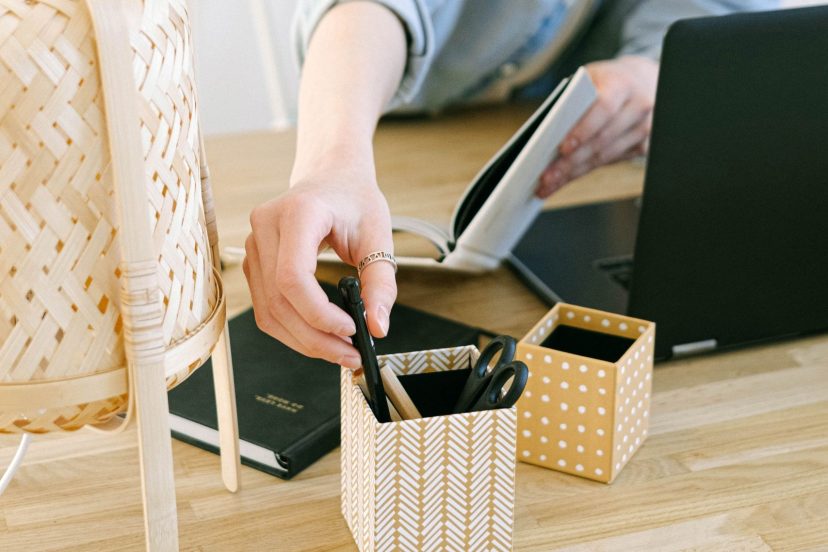
Frequently used items should stay close. This may include your keyboard, mouse, phone, notebook, pen, headset, and water bottle.
Items you use less often should move farther away. Extra cables, old notebooks, backup supplies, manuals, and rarely used gadgets do not need prime desk space.
Think of your desk in zones. The closest zone is for daily essentials. The side zone is for occasional tools. Use drawers and shelves for items you do not need throughout the day.
This layout reduces unnecessary reaching and helps keep your shoulders, neck, and wrists more relaxed. For more ideas, this guide to ergonomic desk accessories covers useful tools that can support a healthier setup.
9. Reset Your Desk at the End of Each Day
Desk organization works best when it becomes a habit. A quick end-of-day reset can stop clutter from building up again.
Before you finish work, take two minutes to clear the main area. Put papers in the right tray, return pens to their holder, throw away trash, wrap loose cables, and move unused items back to storage.
This small routine makes the next day easier. Instead of starting with yesterday’s mess, you sit down to a desk that feels ready.
It also helps you spot patterns. If the same item keeps ending up in the wrong place, it probably needs a better storage spot.
Helpful Products for a More Organized Desk
The right accessories can make desk organization easier while improving comfort. Here are five useful Amazon product ideas:
- Amazon Basics Adjustable Monitor Stand – A simple option for raising your screen and creating storage space underneath. It works well for small desks and basic home office setups.
- VIVO Single Monitor Desk Mount – A good choice if you want more flexible screen positioning. It helps free desk space and makes it easier to adjust monitor height and angle.
- HUANUO Under Desk Keyboard Tray – Helpful if your desk is too high or your keyboard takes up too much surface space. It can support a more relaxed arm position.
- Mind Reader Mesh Desk Organizer – Useful for keeping papers, notebooks, folders, and small supplies from spreading across the desk.
- J Channel Cable Raceway or Under-Desk Cable Tray – A practical solution for managing cords, power strips, and charger cables under the desk.
Conclusion
A well-organized desk should make work feel smoother, not stricter. When your monitor sits at the right height, your keyboard and mouse stay within easy reach, your cables are under control, and your daily tools have a clear place, your workspace becomes easier on both your body and your attention. You do not need to redesign your entire office at once; start with the area directly in front of you, fix the items that cause the most reaching or strain, and build from there. Small adjustments can turn a cluttered desk into a workspace that feels calmer, cleaner, and more comfortable every day.
FAQs
What is the best way to start organizing a desk?
Start by clearing the main work zone directly in front of you. Keep only your keyboard, mouse, monitor, and daily essentials there.
How does desk organization improve ergonomics?
Desk organization improves ergonomics by keeping your tools in comfortable positions. It reduces reaching, leaning, twisting, and awkward wrist or shoulder angles.
Do I need a stand for my monitor?
A monitor stand can help if your screen sits too low. It raises the display closer to eye level and often adds storage space underneath.
How do I organize a small desk ergonomically?
Use vertical storage, a monitor riser, cable clips, and fewer desktop items. Keep the center of the desk open for your keyboard, mouse, and arms.
What desk items should stay within reach?
Keep items you use often within easy reach, such as your keyboard, mouse, phone, notebook, pen, headset, and water bottle. Store less-used items farther away.
Add a meta description and outlineAdd a desk organization checklist