Ergonomic Dual Monitor Setup Ideas
We may earn a commission for purchases made using our links. Please see our disclosure to learn more.
Two monitors can make work much easier, but only if they’re positioned well. A poor setup can leave you constantly turning your head, leaning forward, or dealing with tight shoulders by the end of the day. These ergonomic dual monitor setup ideas focus on practical adjustments that make both screens easier to use without forcing your body into awkward positions.
Why Dual Monitor Ergonomics Matters
Most posture problems happen quietly.
You glance at your second monitor. Then you do it again. By the end of the day, that small head turn may have happened hundreds of times.
That’s why monitor placement matters more than it seems.
OSHA recommends positioning computer monitors so you can view the screen comfortably without repeatedly moving your head or neck. With multiple monitors, the screen you use most should generally sit directly in front of you.
A systematic review of multiple-monitor office setups also found that while multiple screens can improve task efficiency, poor positioning may encourage non-neutral neck postures.
If you’re still working out the basics, this guide to ergonomic monitor height, distance, and viewing angles is a useful place to start.
Figure Out Which Monitor You Use Most
Before moving anything, pay attention to how you actually work.
Which screen holds the document you type into? Where does your browser usually sit? Which monitor gets most of your attention?
If one monitor gets most of your attention, keep that screen centered with your body. Your secondary screen can sit beside it at a slight inward angle.
This is where perfect symmetry can work against you. If you spend most of the day looking at the left monitor but sit facing the gap between both screens, your neck stays slightly turned for hours.
It may look tidy. It won’t necessarily feel tidy.
When You Use Both Monitors Equally
Some jobs genuinely involve moving back and forth between two screens all day.
Maybe you’re comparing spreadsheets, editing while checking references, or coding on one screen while viewing the result on another.
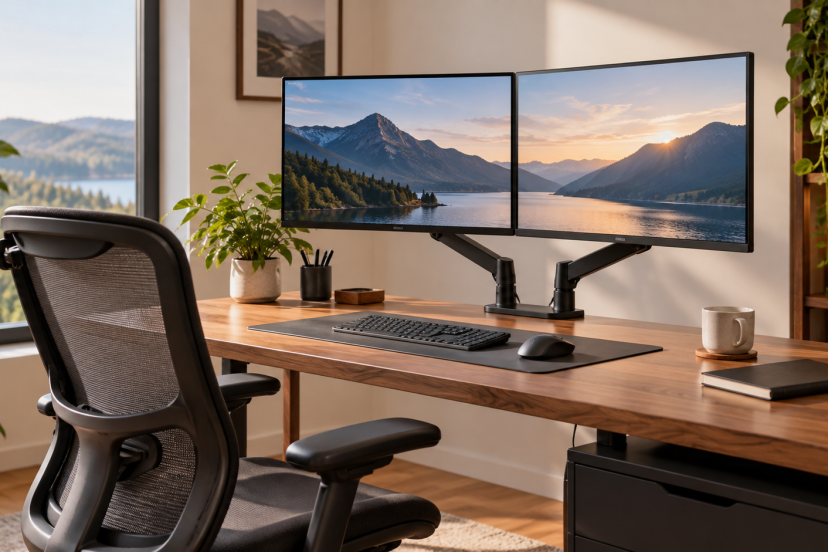
In that case, place both monitors side by side with the inner edges meeting roughly in front of you. Angle each screen inward slightly.
Think of the monitors as a shallow curve rather than one completely flat wall.
If both screens are the same size, aligning their top edges usually makes the setup easier on the eyes too.
Don’t Set Your Monitors Too High
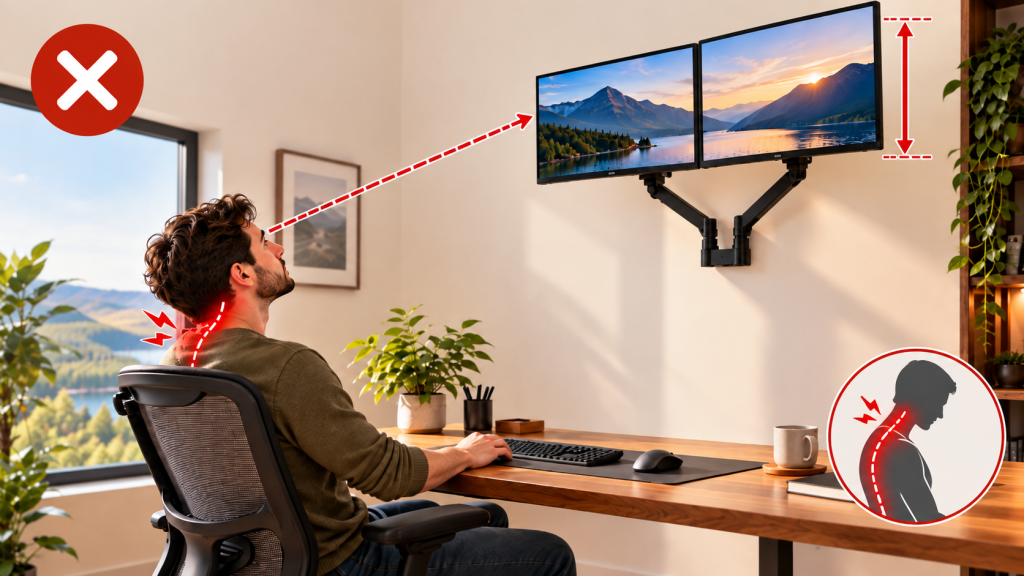
There’s a tendency to keep raising monitors in the name of ergonomics.
A riser goes under the screen. Then a shelf goes under the riser. Before long, you’re looking slightly upward all day.
Higher isn’t always better.
Settle into your usual sitting position, let your shoulders drop naturally, and face forward. OSHA guidance suggests keeping the top of the monitor around eye level or slightly below it, with most of the screen sitting lower than your straight-ahead gaze.
A study examining monitor height also found that screen position can affect neck flexion and neck muscle activity.
You don’t need to chase one exact measurement. The aim is simply to avoid holding your chin up or letting your head hang forward for long periods.
Find a Comfortable Viewing Distance
An arm’s length is still a useful starting point.
OSHA gives a broader preferred range of roughly 20 to 40 inches, depending on monitor size, eyesight, and the size of the text on screen.
If you keep leaning forward to read, try increasing font size or display scaling before dragging the monitor closer.
Your back should be able to stay supported while you read comfortably.
Angle the Monitors Toward You
Two large monitors placed completely flat can create more head movement than you expect.
Angle them inward instead.
You don’t need an extreme cockpit-style arrangement. A small angle is usually enough to bring the outer edges closer to your natural field of view.
This becomes even more useful with 27-inch or 32-inch screens.
Keep the windows you use most near the center. Less important tools, chats, music controls, and reference notes can sit farther toward the edges.
A Monitor Arm Can Solve Several Problems
I’m a fan of monitor arms because they fix several annoyances at once.
They free up desk space, make height adjustments easier, and let you move the displays backward or inward without fighting bulky factory stands.
A decent dual monitor arm usually lets you adjust:
- Height
- Depth
- Tilt
- Rotation
- Side-to-side position
Before buying one, check monitor weight, VESA compatibility, screen size, and desk thickness. Cheap arms can work perfectly well with lighter displays but may sag under heavier monitors.
If you’d rather keep the original monitor base, an ergonomic monitor stand can also help with screen height and desk organization.
Match Your Keyboard to Your Monitor Position
It’s easy to get the monitors right and forget the keyboard.
If your primary monitor sits in front of you, your keyboard should generally line up with it. Otherwise, your torso faces one direction while your hands work in another.
If you use both monitors equally, centering the keyboard beneath the point where the screens meet may feel more natural.
Keep the mouse close too. Reaching far to the side thousands of times a week can add unnecessary shoulder movement.
Don’t Ignore Glare
Perfect monitor height won’t help much if you’re squinting at reflections all afternoon.
Whenever possible, place your desk so windows sit more to the side rather than directly behind you or directly behind the monitors.
OSHA recommends reducing reflections from windows and overhead lighting because glare can encourage awkward viewing positions.
It also helps to keep both screens at roughly similar brightness levels. They don’t need to match perfectly, but moving constantly between one bright display and one very dim display can be tiring.
Try One Vertical Monitor
A vertical screen can be surprisingly useful.
Portrait orientation works well for documents, research, coding, email, web pages, and anything that involves lots of scrolling. A portrait display can also free up more room across the width of your desk.
Just be careful with height.
A 27-inch monitor turned vertically becomes very tall. Keep the content you use most near the center rather than constantly looking toward the top of the screen.
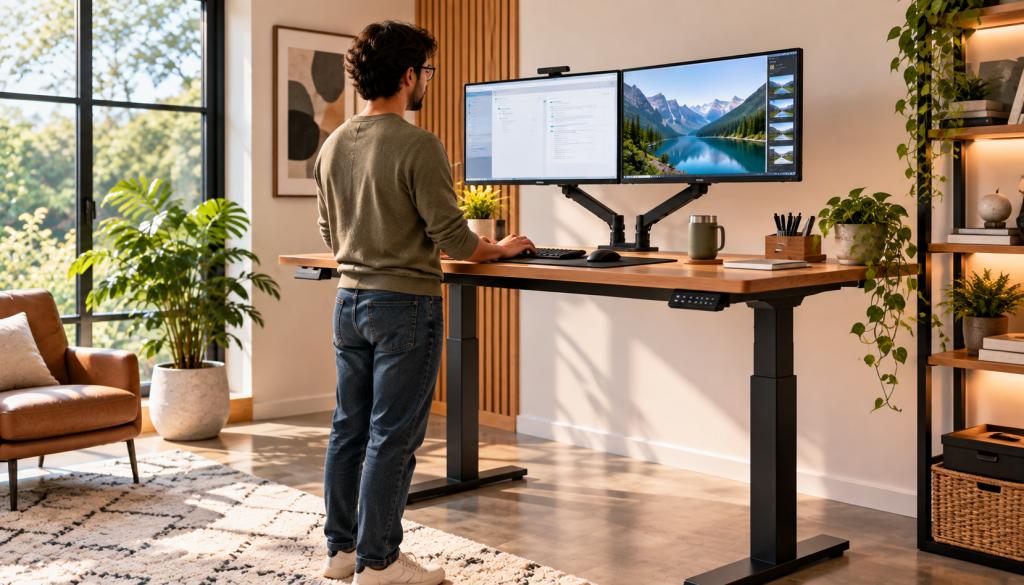
Dual Monitors and Standing Desks
A standing desk doesn’t automatically create good posture.
You can still lean forward, lock your knees, or place the screens too high.
The useful part of a sit-stand desk is that your monitors, keyboard, and mouse move together. Their relationship should remain fairly similar whether you’re sitting or standing.
Monitor arms help here because they make small adjustments much easier.
And remember, standing desks are really about changing position. Standing completely still for hours isn’t the goal.
Common Dual Monitor Setup Mistakes
A few problems show up again and again:
Monitors are too high.
Looking slightly upward all day can become uncomfortable.
The screens are too far apart.
A large gap means more head movement every time you switch displays.
The second monitor sits too far to the side.
You may end up rotating your neck or upper body repeatedly.
The screens are too close.
Large displays can feel overwhelming when they sit right in front of your face.
Text is too small.
Increasing display scaling may be better than pulling the monitors closer.
The setup is symmetrical, but your workflow isn’t.
Your desk doesn’t need to look mathematically perfect. It needs to work for you.
Recommended Products
1. HUANUO Dual Monitor Stand
HUANUO dual monitor arms are useful when factory stands don’t offer enough adjustment. Independent arms make it easier to change height, depth, and viewing angle.
Best for: Flexible home-office setups.
2. MOUNTUP Dual Monitor Desk Mount
MOUNTUP gas-spring mounts make screen repositioning simple. Some models support monitors up to around 32 inches, though weight limits vary.
Best for: Adjustable or shared workstations.
3. VIVO Pneumatic Dual Monitor Arm
VIVO’s pneumatic arms offer plenty of movement and can help push monitors farther back than standard bases allow.
Best for: Desks that need more usable surface space.
4. NB North Bayou Dual Monitor Mount
North Bayou mounts are a practical option for smaller and mid-size screens and offer plenty of everyday adjustment.
Best for: Budget-conscious setups.
5. BenQ ScreenBar Halo 2
The ScreenBar Halo 2 sits above your display and lights the desk without taking up space beside your keyboard.
It won’t fix poor posture, but better lighting can make your workspace more comfortable.
Best for: Crowded desks and low-light workspaces.
Conclusion
A good dual-monitor setup should feel almost invisible while you work. Start with the monitor you use most and place it where your body naturally faces. Keep the second display close, angle both screens toward you, and adjust the height and distance until you can work without leaning or repeatedly turning your head. Don’t chase a perfectly symmetrical desk. The best setup is the one that feels natural after several hours of real work.
FAQs
Should dual monitors be centered?
Only if you use both equally. Otherwise, center your main monitor in front of you.
How far away should dual monitors be?
Start with the monitors roughly an arm’s reach away, then fine-tune the distance for comfort. Adjust for screen size and readability.
Should dual monitors be angled?
Yes. A slight inward angle can reduce unnecessary head turning.
Do both monitors need to be the same height?
Not always. Similar screens usually feel better aligned, but comfort matters more than symmetry.
Is a dual monitor arm worth it?
Often, yes. It makes height, distance, and angle adjustments much easier.